Getting started with VulgatAI
Installation, connecting your AI, and general settings. Then, as soon as you want to bring in content from another site: add a source, check it, and import and translate your first entry, WooCommerce products included, with status and activity always in view. All with real screenshots, step by step.
Before you start. VulgatAI has no API key of its own: it runs on the AI connectors already built into WordPress 7.0 (Anthropic, Google or OpenAI) under Settings → Connectors. Any one of the three gets it working, no separate account and nothing in the middle.
Install the plugin
Upload the ZIP file you received with your access under Plugins → Add plugin → Upload plugin. WordPress installs it straight from that format, no need to unzip it first.
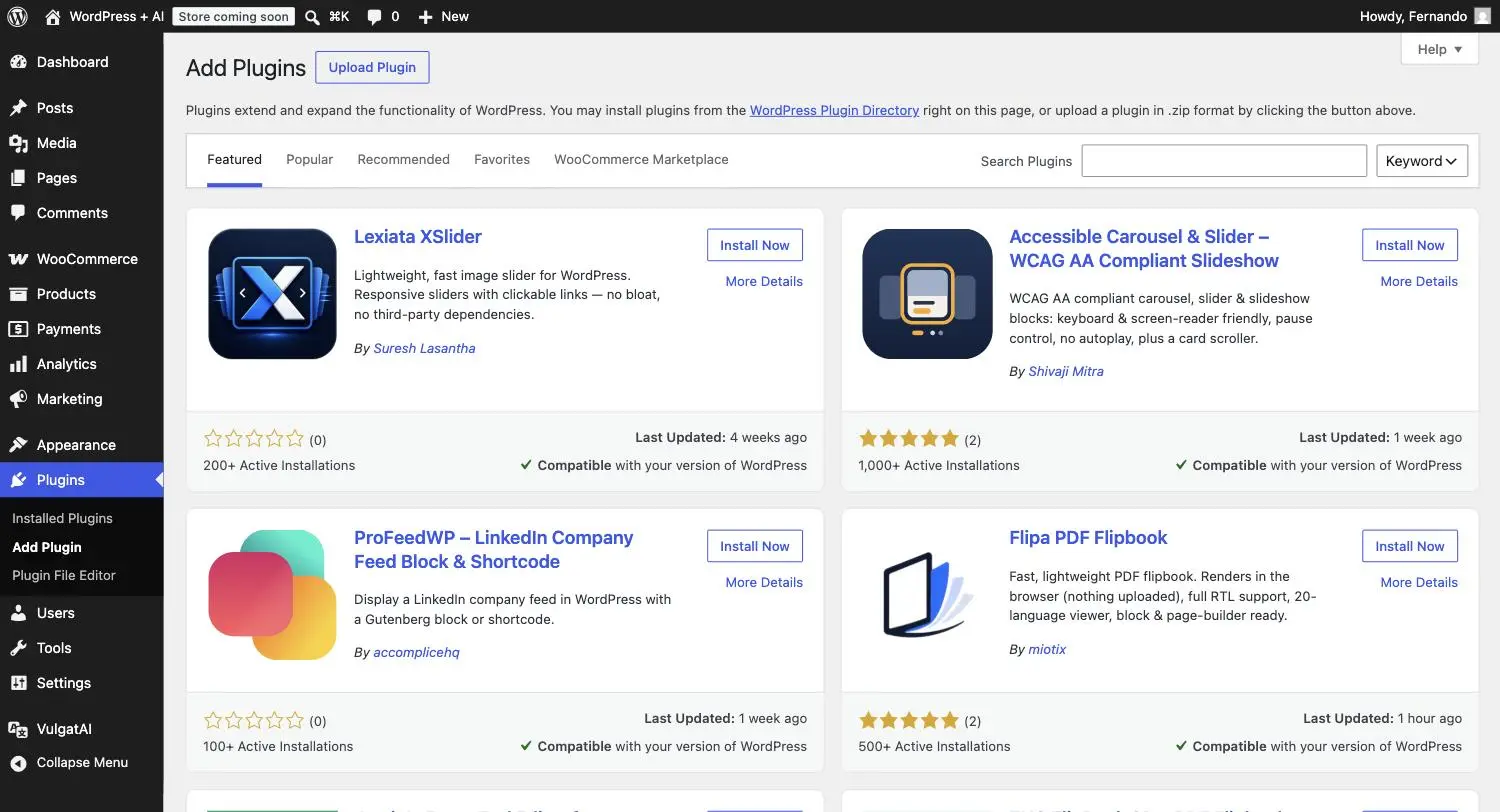
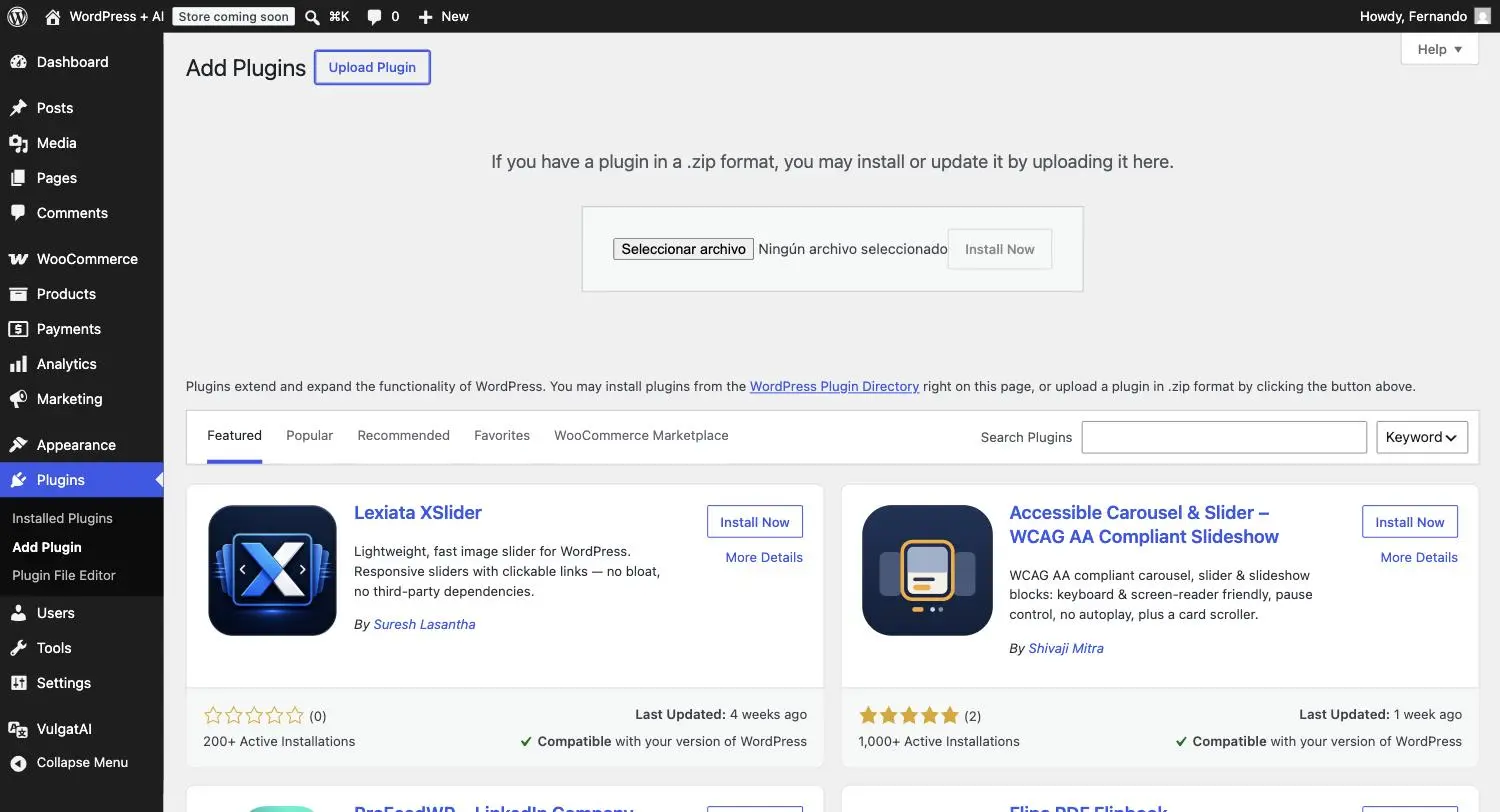
WordPress copies the files across and offers Activate Plugin. A moment later, VulgatAI shows up active in your plugin list, and its own menu appears in the sidebar with four screens: Dashboard, Sources & import, Translate with AI and Terms.
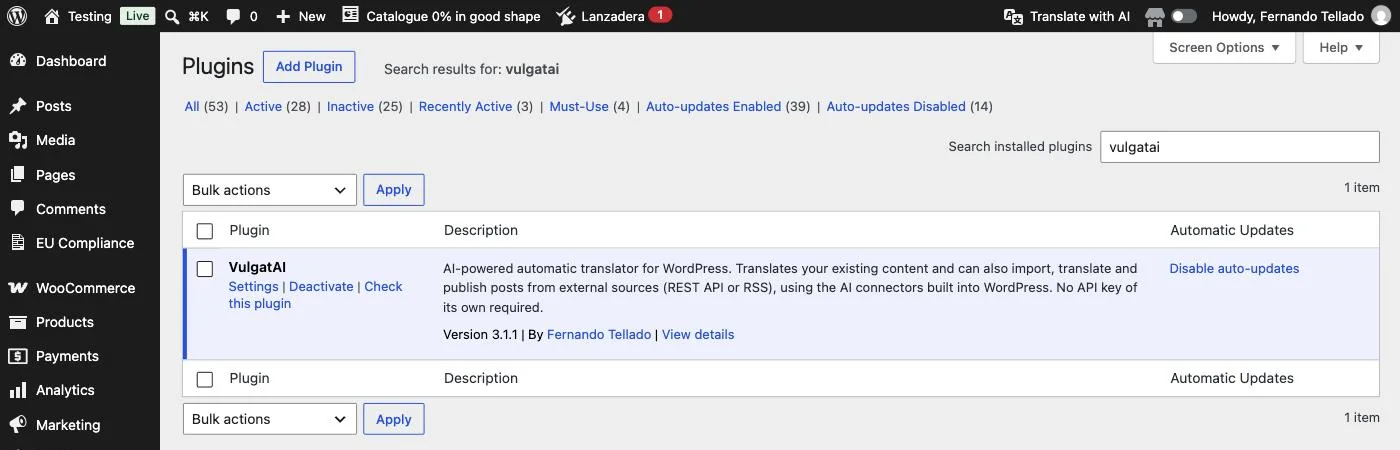
Requirements. WordPress 7.0 or later and PHP 7.4 or later. The AI connectors are part of WordPress 7.0 core, so there's nothing extra to install to get a provider ready.
Updates. VulgatAI isn't in the WordPress.org directory, so from version 2.1.0 it updates from its own site, and new versions show up where WordPress always shows them (the notice on the plugins screen, the Update now button and automatic updates if you have them on). The Updates group at the bottom of the Dashboard tab shows the installed version, which also appears next to the plugin's name, and holds the licence key.
Connect your AI
VulgatAI translates using whichever AI is already connected to your WordPress. Before touching its own settings, check you have at least one connector active under Settings → Connectors, the WordPress 7.0 screen where API keys are stored and shared across plugins.
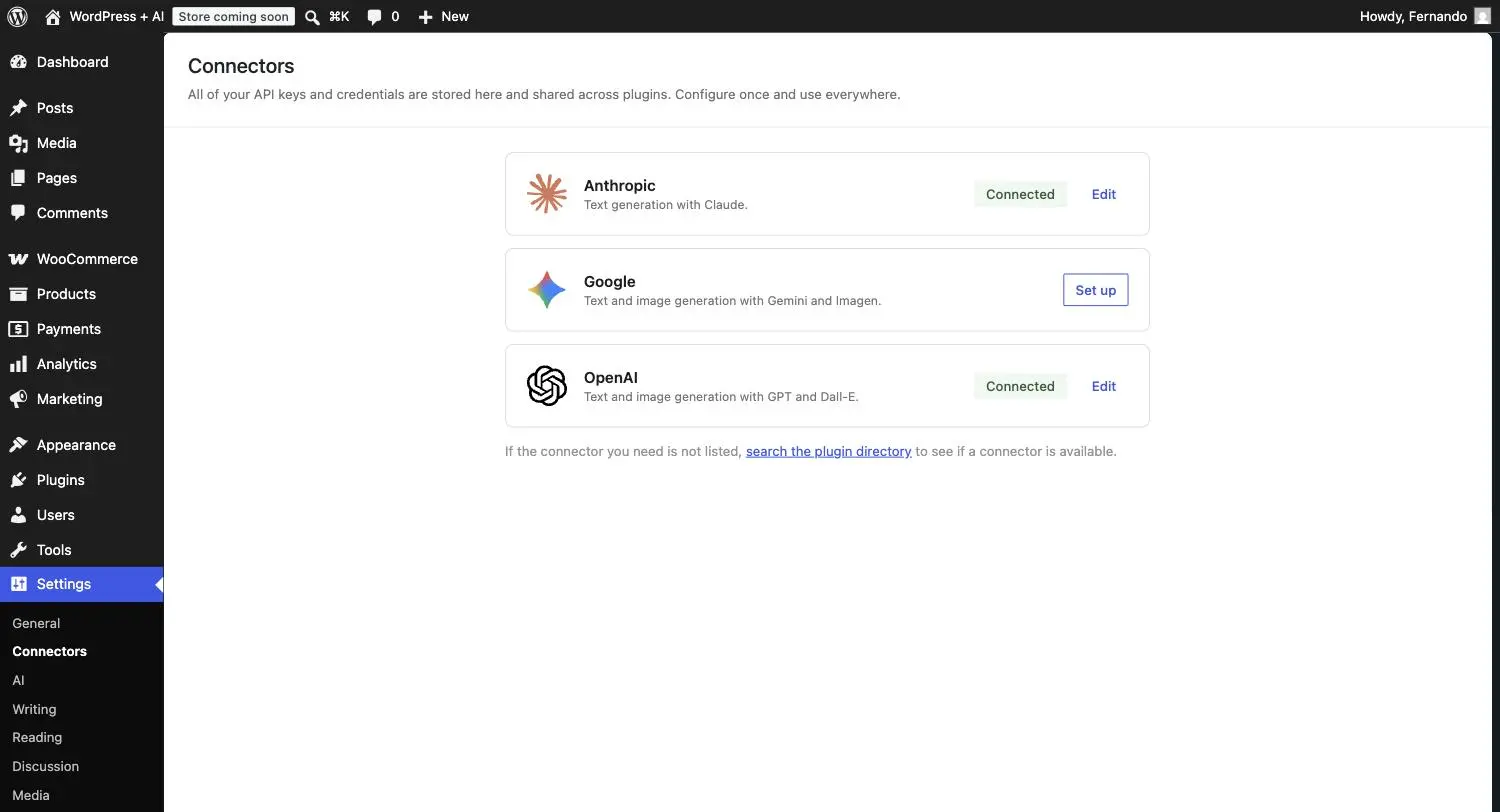
If the provider you want isn't connected, click "Configure" or "Activate" next to its name and paste in the API key you generated on its site.
You don't need all three. With a single connector active, VulgatAI can already translate. Its own Dashboard confirms which model it's actually using, right on the Status card.
Translation settings
From the side menu, open VulgatAI → Dashboard. The first card, Status, confirms which AI model is in use, whether anything needs review, and how the scheduled sync is doing. The translation settings sit below it, in the Language and model and Glossary groups: that is where you pick the target language, the model, what to translate and the glossary.
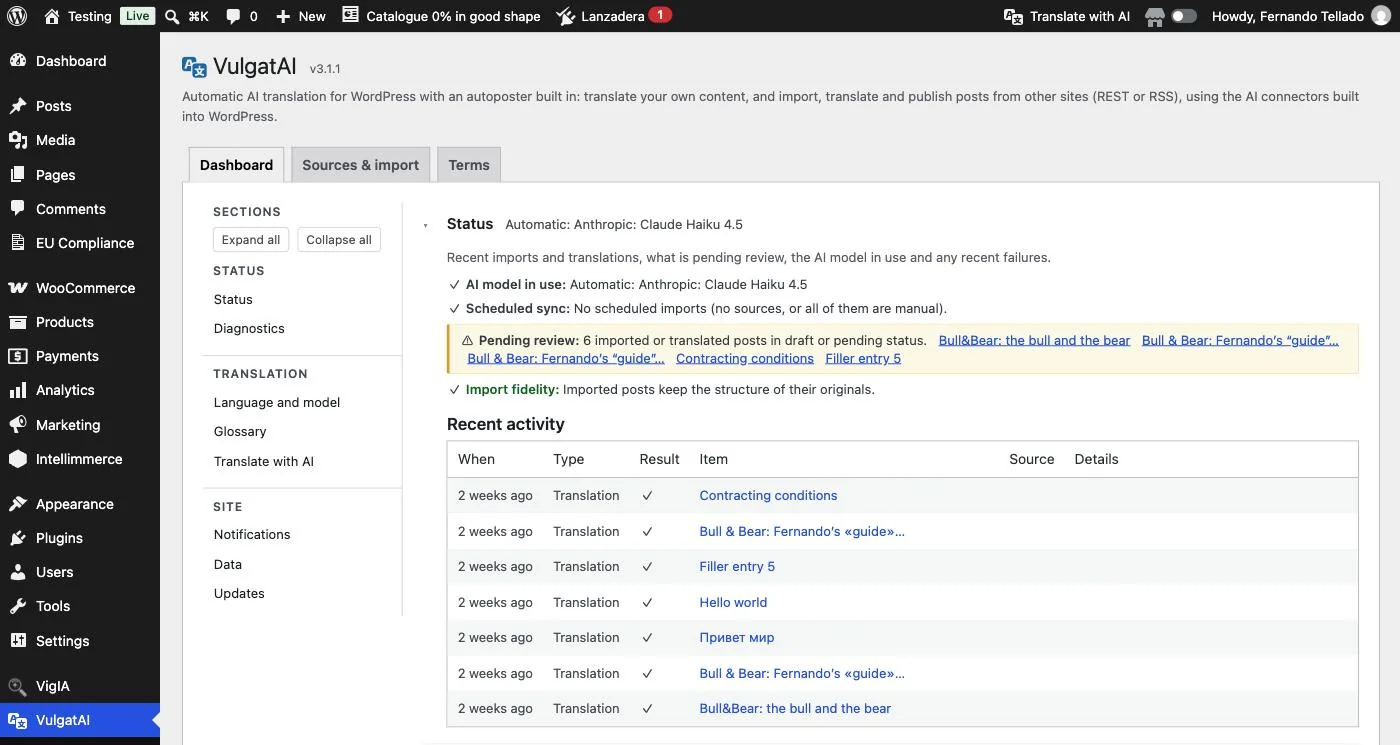
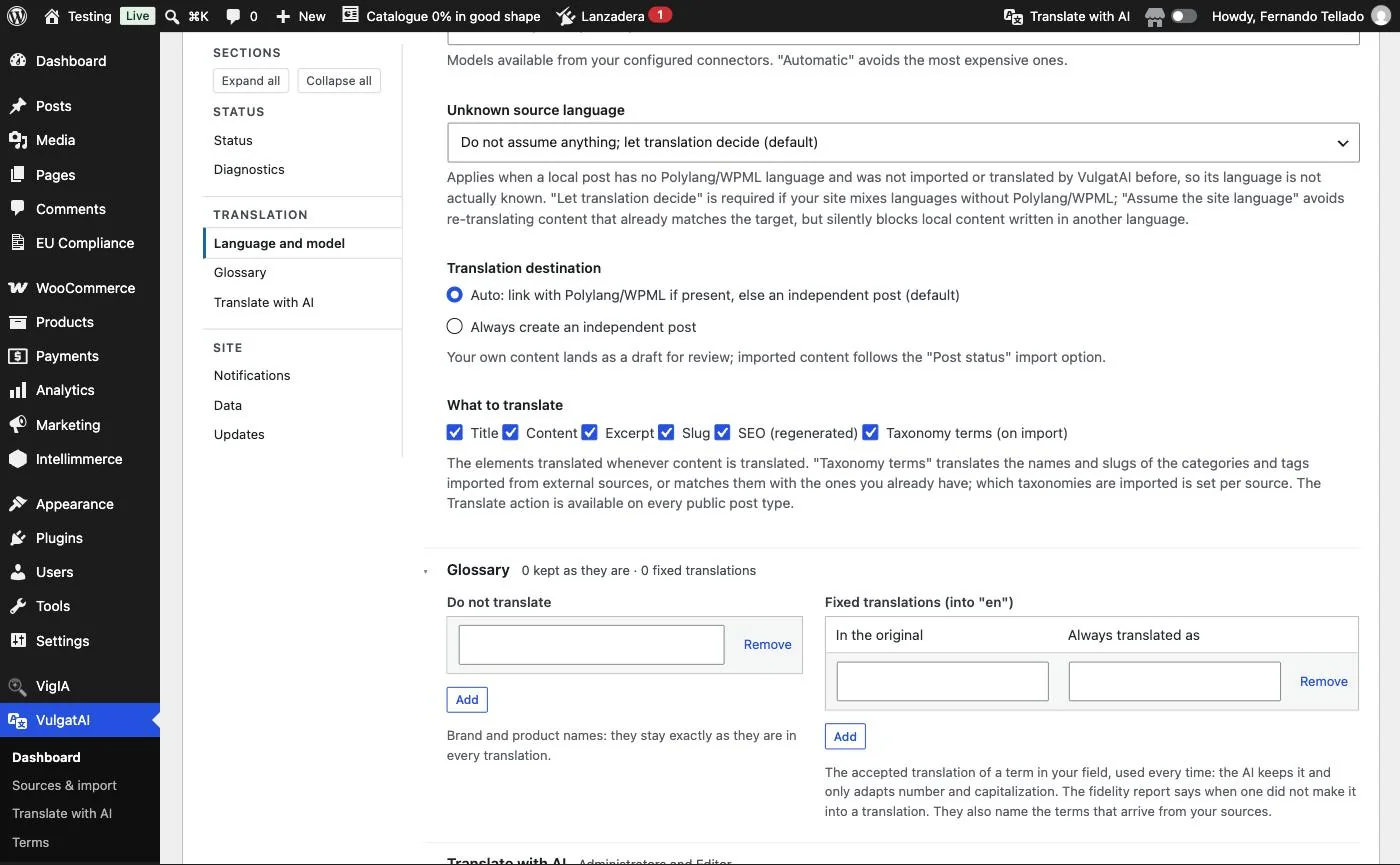
Every tab has a side index of its groups, with Expand all and Collapse all, and the section on screen is marked as you scroll. Open Language and model. Target language is the code you translate into (for example "en"), independent of your wp-admin's own language. Under AI model, Automatic skips the pricier models; you can pin a specific one from your connectors instead. Translation destination says where your own translations go: linked to the original if Polylang or WPML is available, an independent post otherwise, always as a draft for you to review. What to translate lets you tick title, content, excerpt, slug, SEO and taxonomy terms.
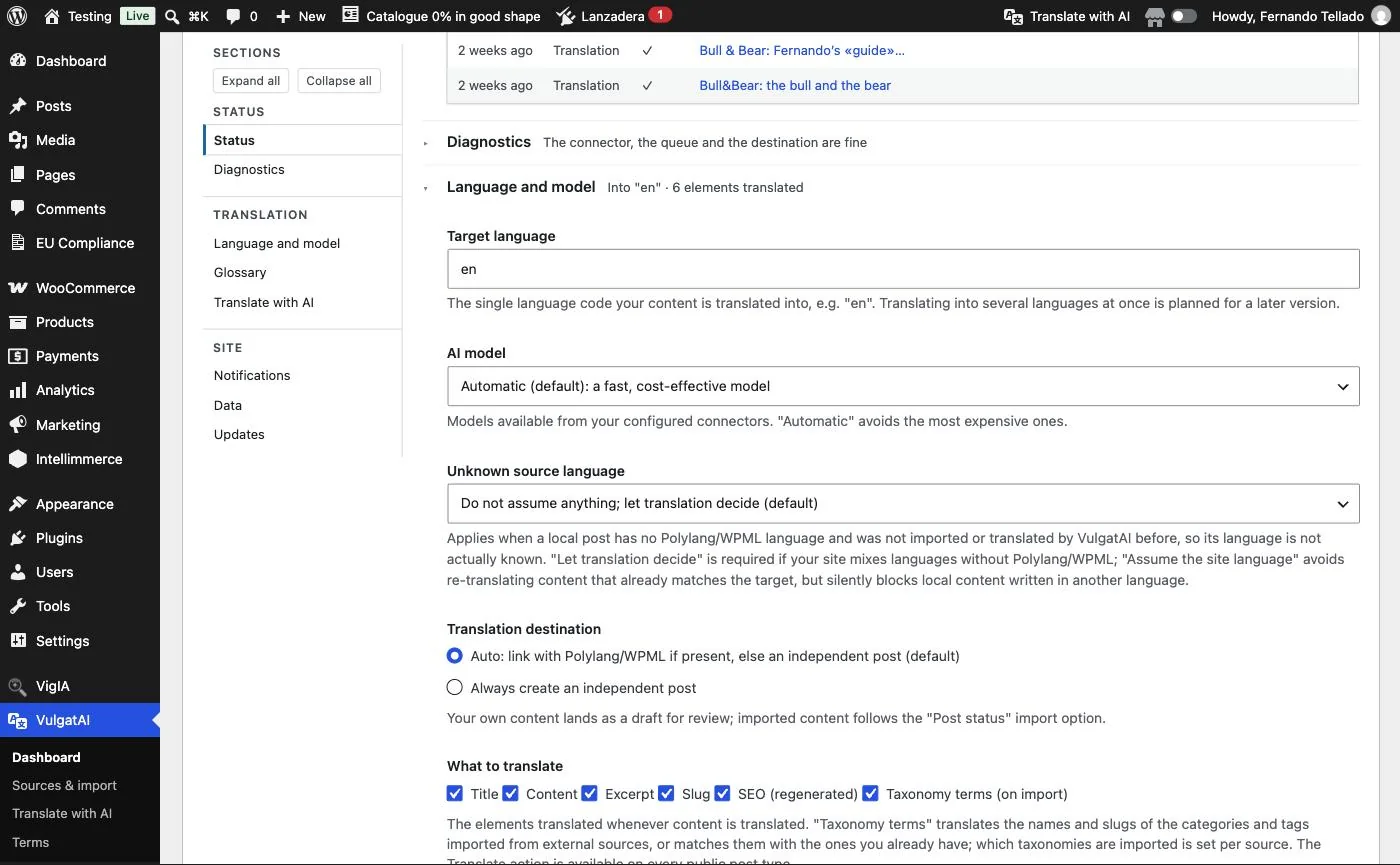
What if you don't know a post's language? Unknown source language decides what happens when a local post carries no language marker from Polylang, WPML or VulgatAI: by default, it lets the translation itself detect it.
The Glossary group has two lists. "Do not translate" keeps brand and product names exactly as written, and "Fixed translations", per target language, pairs an original term with the exact translation it must always get. The fidelity report flags a translation that did not use one.
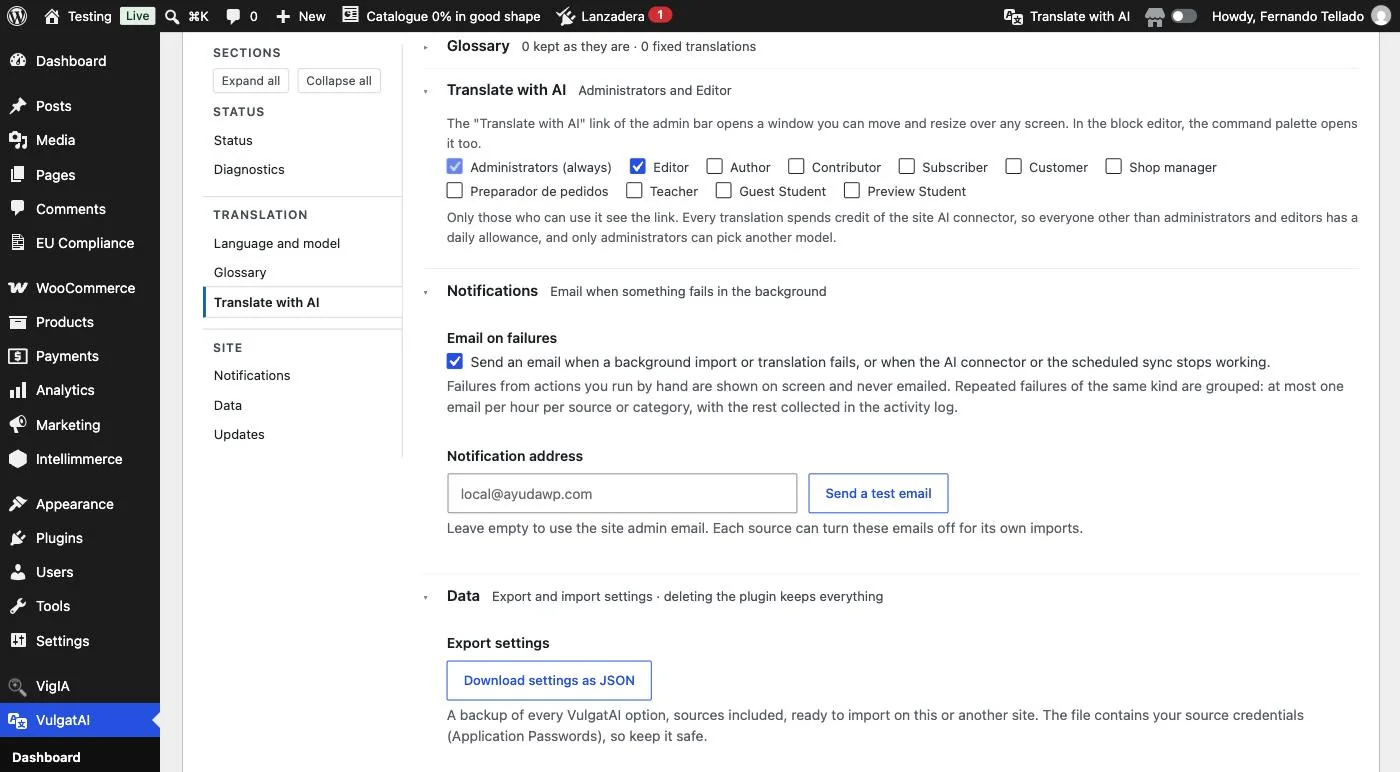
Further down, Notifications turns on an email when a background import or translation fails, grouping repeated failures so it doesn't flood your inbox. And Data lets you export every VulgatAI setting, sources included, as a JSON backup, or import one on this site or another. In the Translate with AI group of the Dashboard tab you also choose which roles can use it (step 12), and the Updates group at the bottom of that tab shows the installed version and holds the licence key.
Import settings
VulgatAI → Sources & import holds, in General options below the list of sources, the defaults applied to scheduled imports, and any source can override each of them.
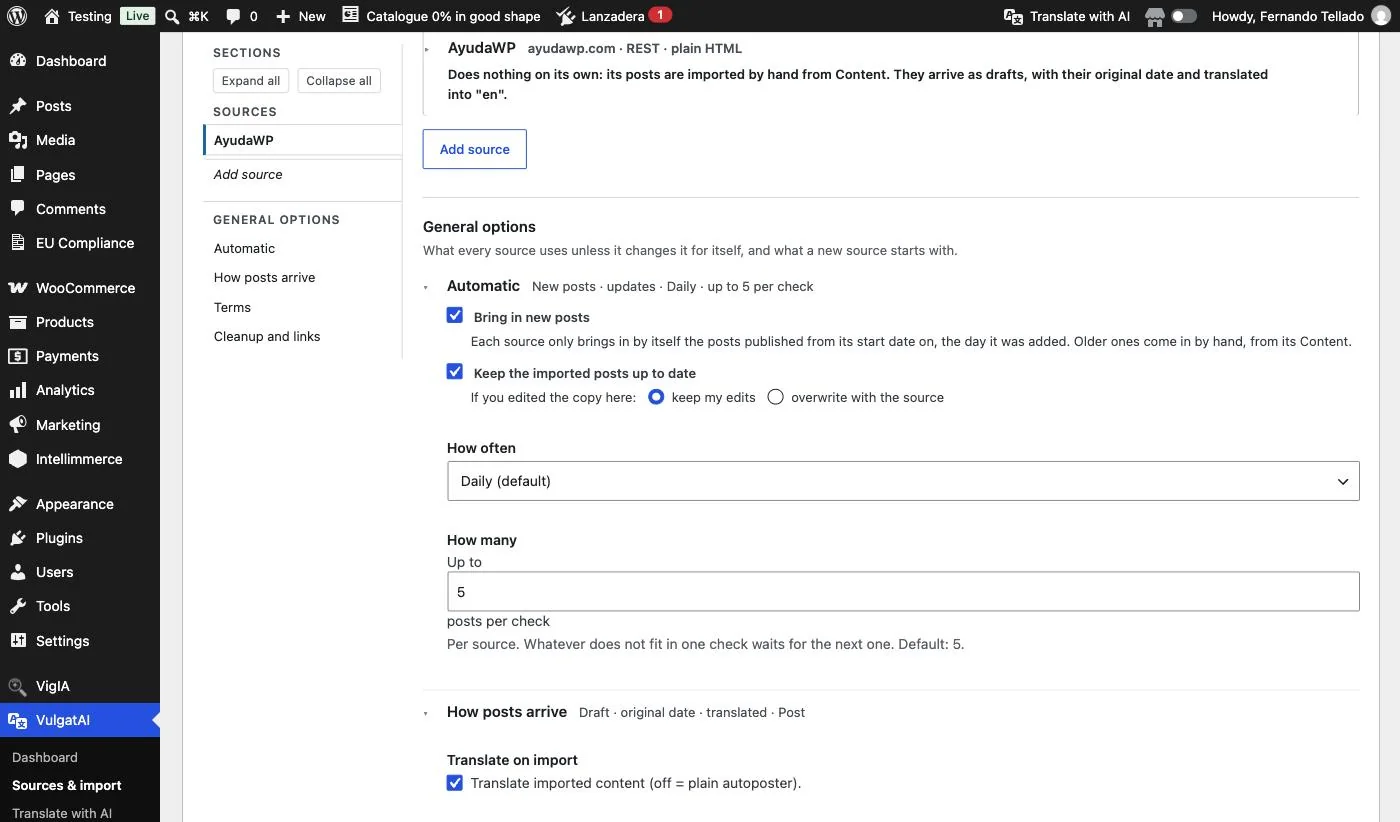
Automatic import is two independent switches, Bring in new posts and Keep the imported posts up to date, and the second one asks whether to keep your edits or overwrite with the source for posts you changed here. With both off, a source does nothing on its own and you import by hand, and How often and How many (the per-check limit) are dimmed rather than hidden until one of them is on. New posts only come in automatically once published on or after a start date, which defaults to the day you add the source or, for an existing source, the day you updated the plugin. Older posts stay one click away in the source's Content list, and updates to posts already imported ignore the start date.
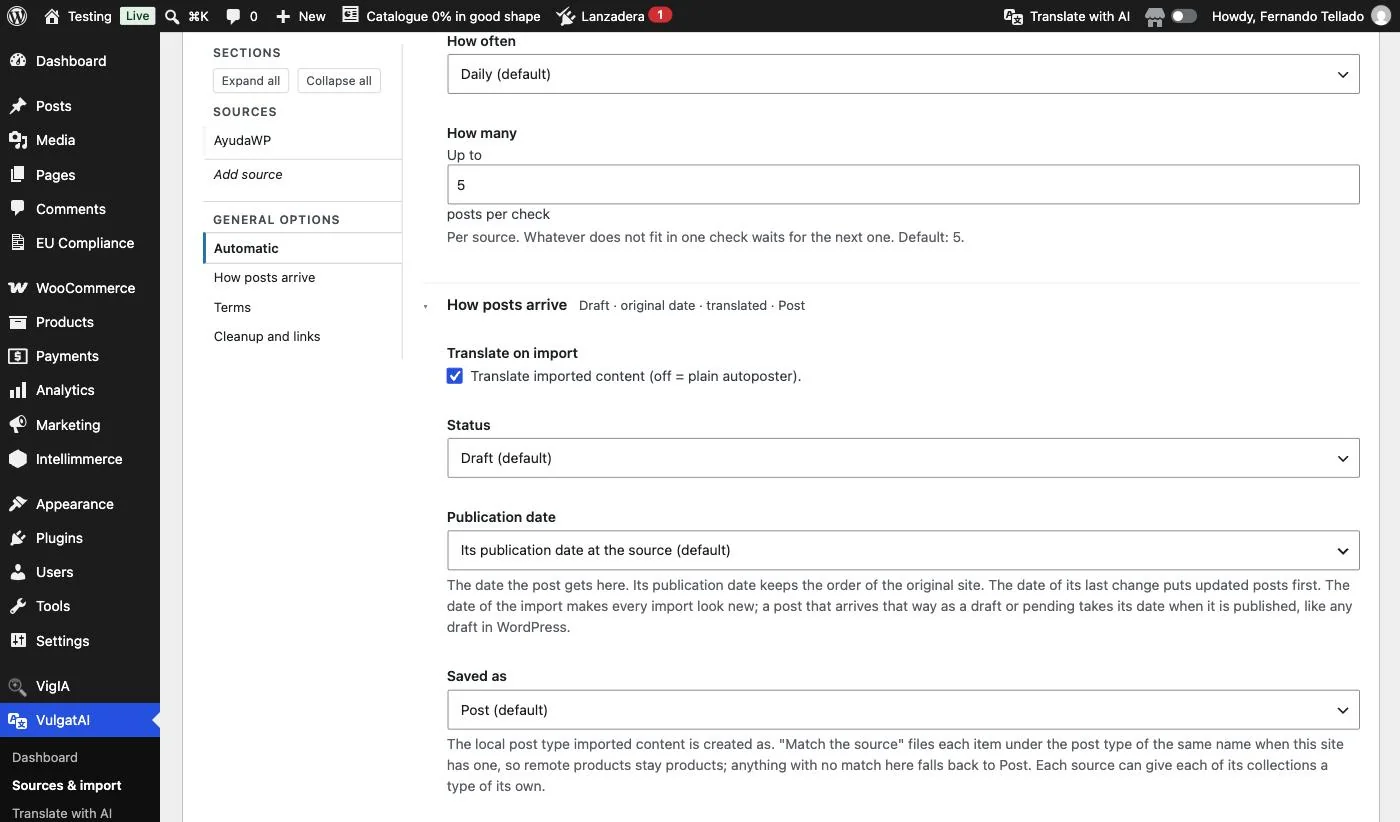
Translate on import decides whether VulgatAI translates what it brings in or just autoposts it in its original language. Status sets whether each new entry lands as a draft or published, and it only applies to new posts, because updating an imported post later never changes the status it has. The publication date has three choices, the publication date at the source (the default), the date of its last change at the source and the date of the import. Saved as sets the local post type that imported content is created as (Post by default), and Author who is credited with it.
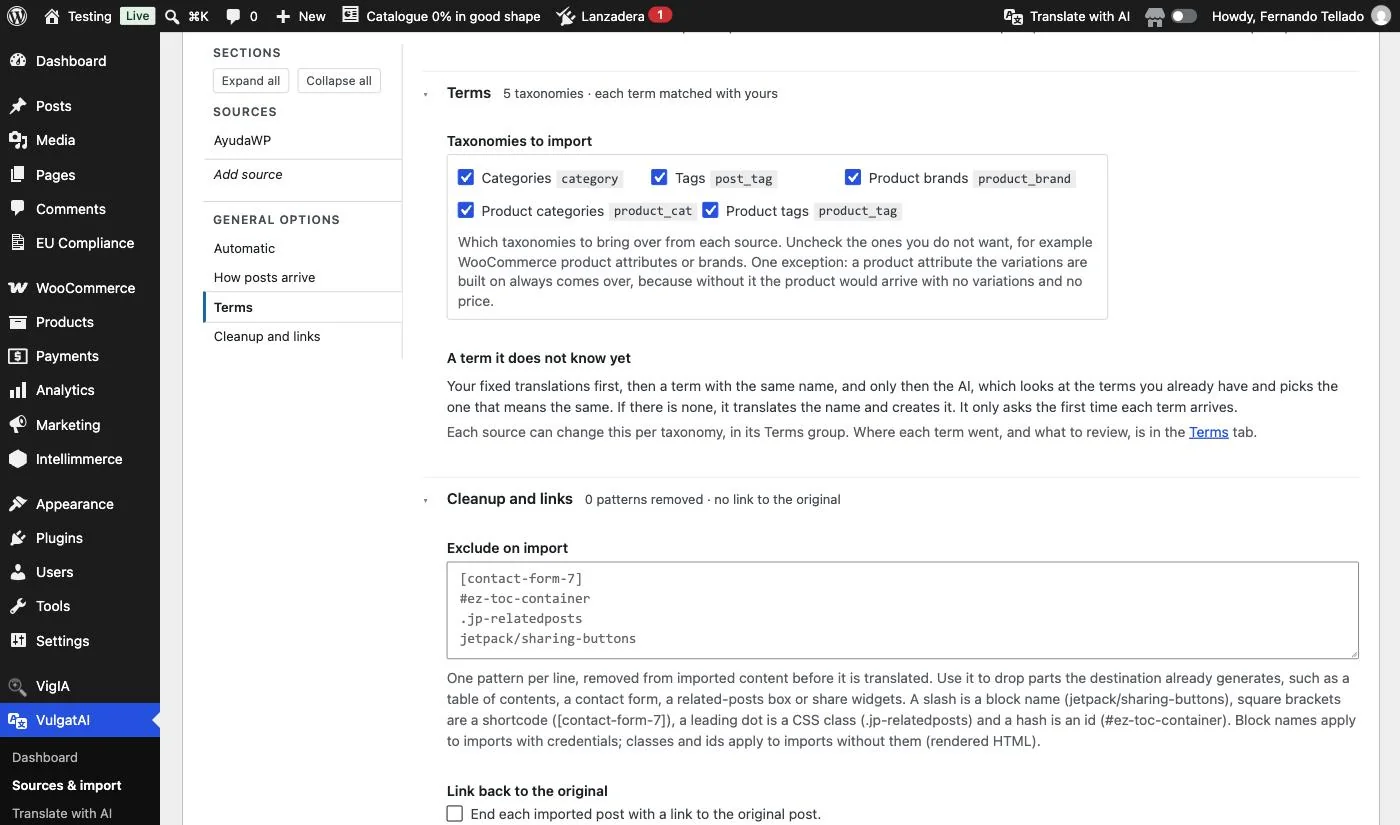
Cleanup and links holds three things. "Exclude on import" removes parts of the original before it is translated, one pattern per line: a block name such as jetpack/sharing-buttons, a shortcode in square brackets, a CSS class with a leading dot or an id with a hash (block names apply to imports with credentials, classes and ids to imports without them). "Link back to the original" ends each imported post with a line made of a prefix you choose, such as "Source:", and a link to the original post. And the settings for links pointing at the source site decide what happens to them.
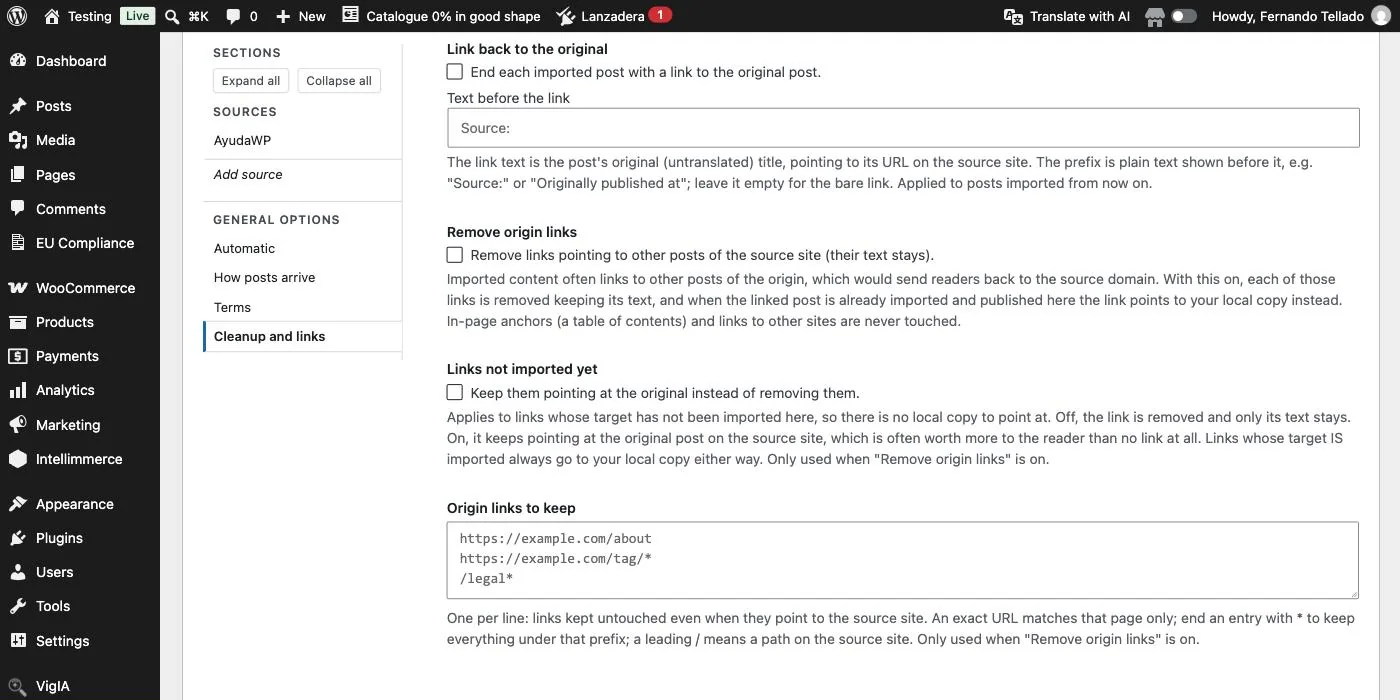
Links back to the source. You can strip a source site's internal links while keeping their text (rewritten to your local copy once that post is imported) and keep an allowlist of URLs or prefixes that are never touched. A third choice next to those, off by default, leaves the link pointing at the original when the original is worth linking to.
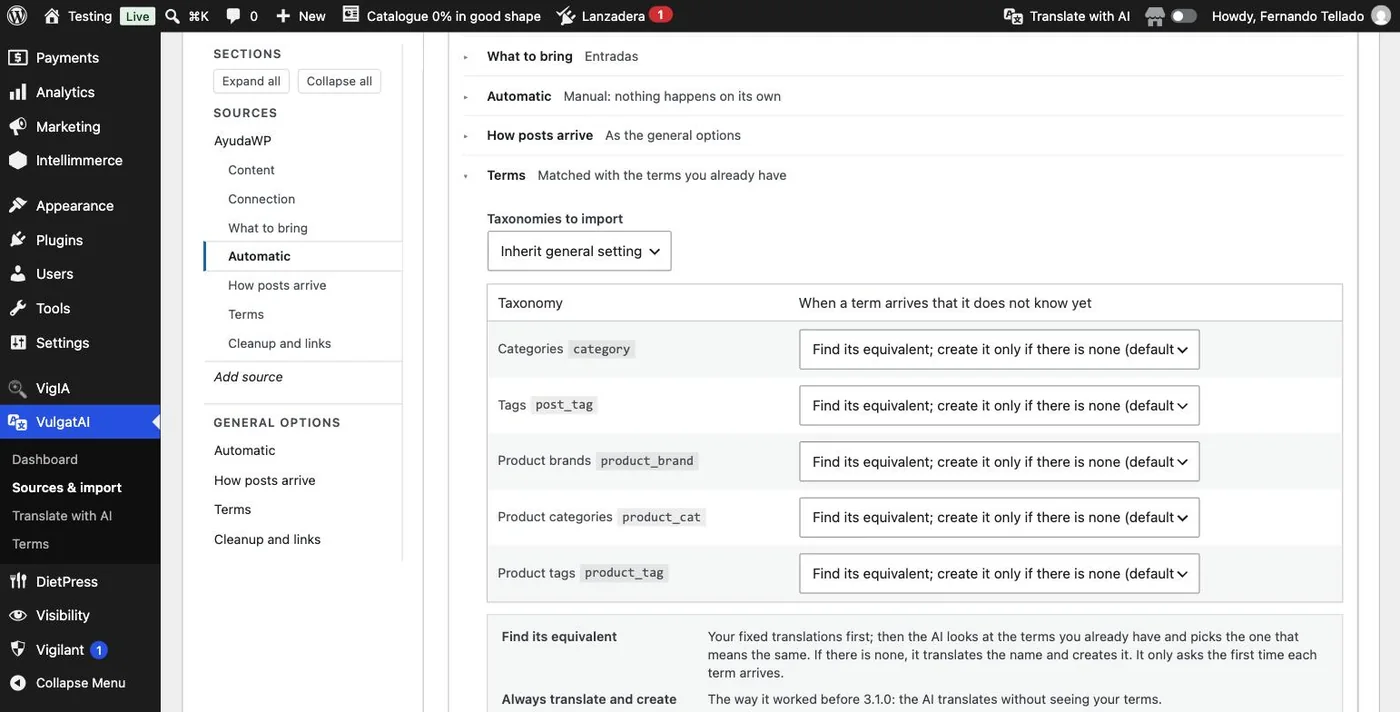
Terms are matched, not just created. An imported term is first matched with your own assignment, your fixed translations and a term with the same name or slug, and only then does the AI pick the equivalent among your existing terms, creating a new one when none fits. This is the default for every site, existing ones included, so a term arriving for the first time after the update is no longer translated and created blindly. To keep the previous behavior, set a source's Terms group to "Always translate and create". Step 8 shows where every decision is recorded.
Category trees arrive whole. A term at the source names its parent by an ID that means nothing here, so imported categories used to land flat however carefully they had been arranged. The ancestors that are missing now come along with the term and the tree is rebuilt on your site, while each post still gets only the terms it actually carried. Terms you already have are used where they are and never moved, because where they sit is your decision.
Add a source
The top of Sources & import lists the sources you already have, and the Add source button sits beneath them. Each source is a site to import from: over REST, with a username and Application Password to bring over the original editable blocks, or with just the URL to import as plain HTML; over RSS, with fewer options but no credentials needed.
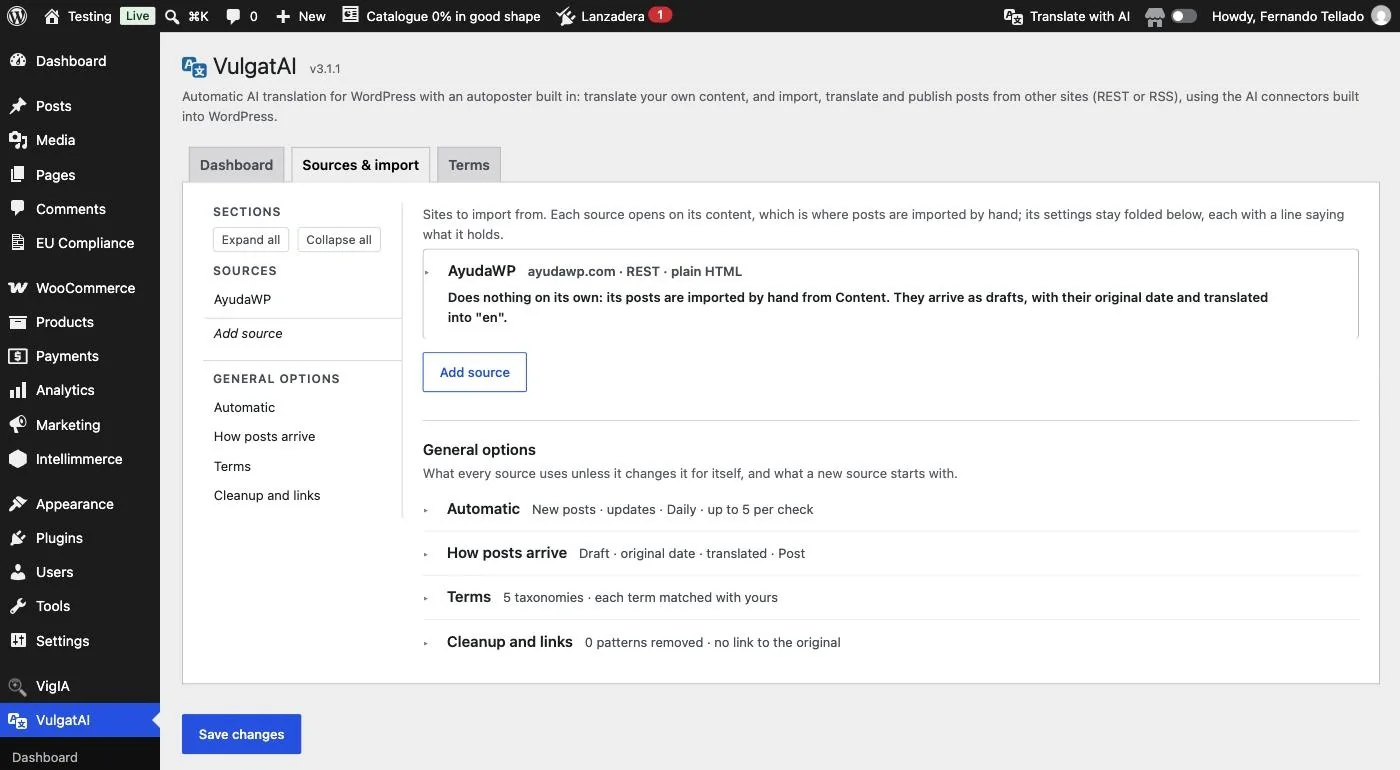
Each source opens on its content, with its settings folded below in groups (Content, Connection, What to bring, Automatic, How posts arrive, Terms, Cleanup and links) and a sentence saying what the source does. A new one starts with its form, with Name (to identify it, optional), Type (REST API or RSS), the source URL and its language.
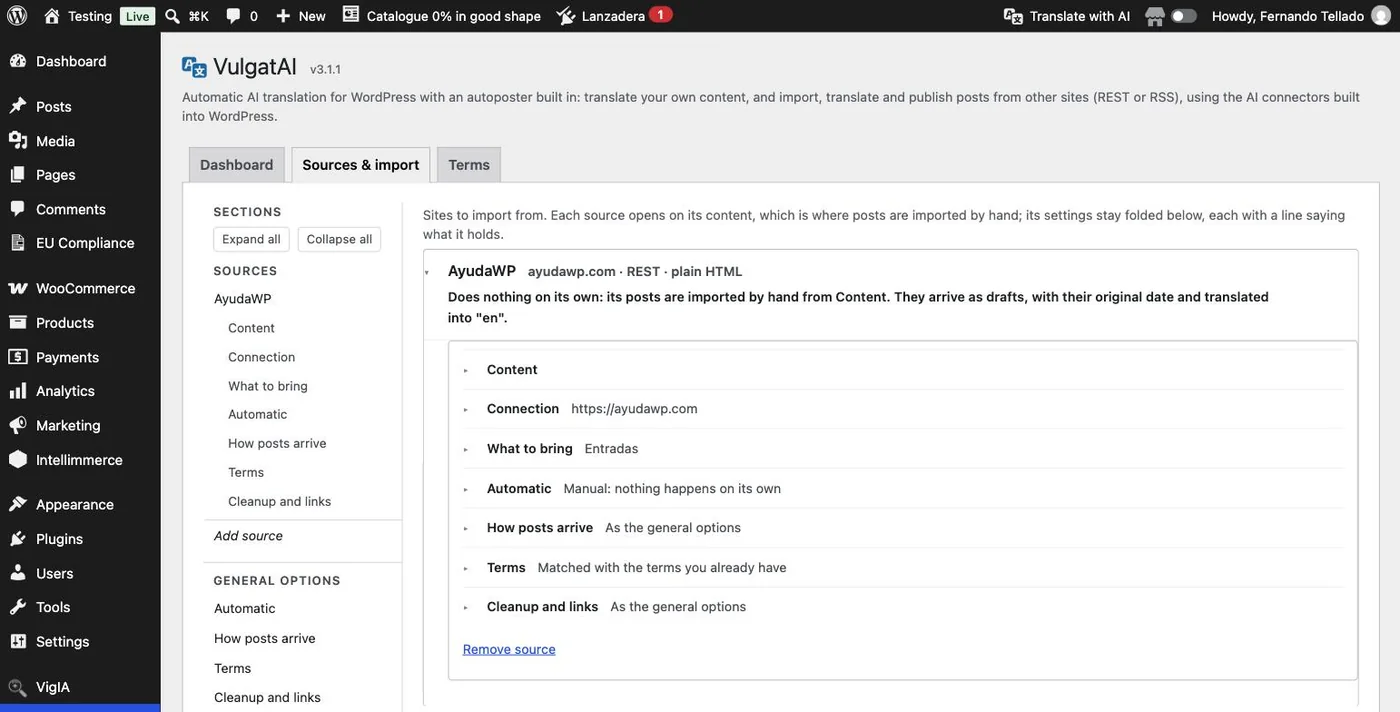
A setting a source takes from the general options is marked "General". "Change here only" overrides it for that source, and "Back to the general setting" undoes the override.
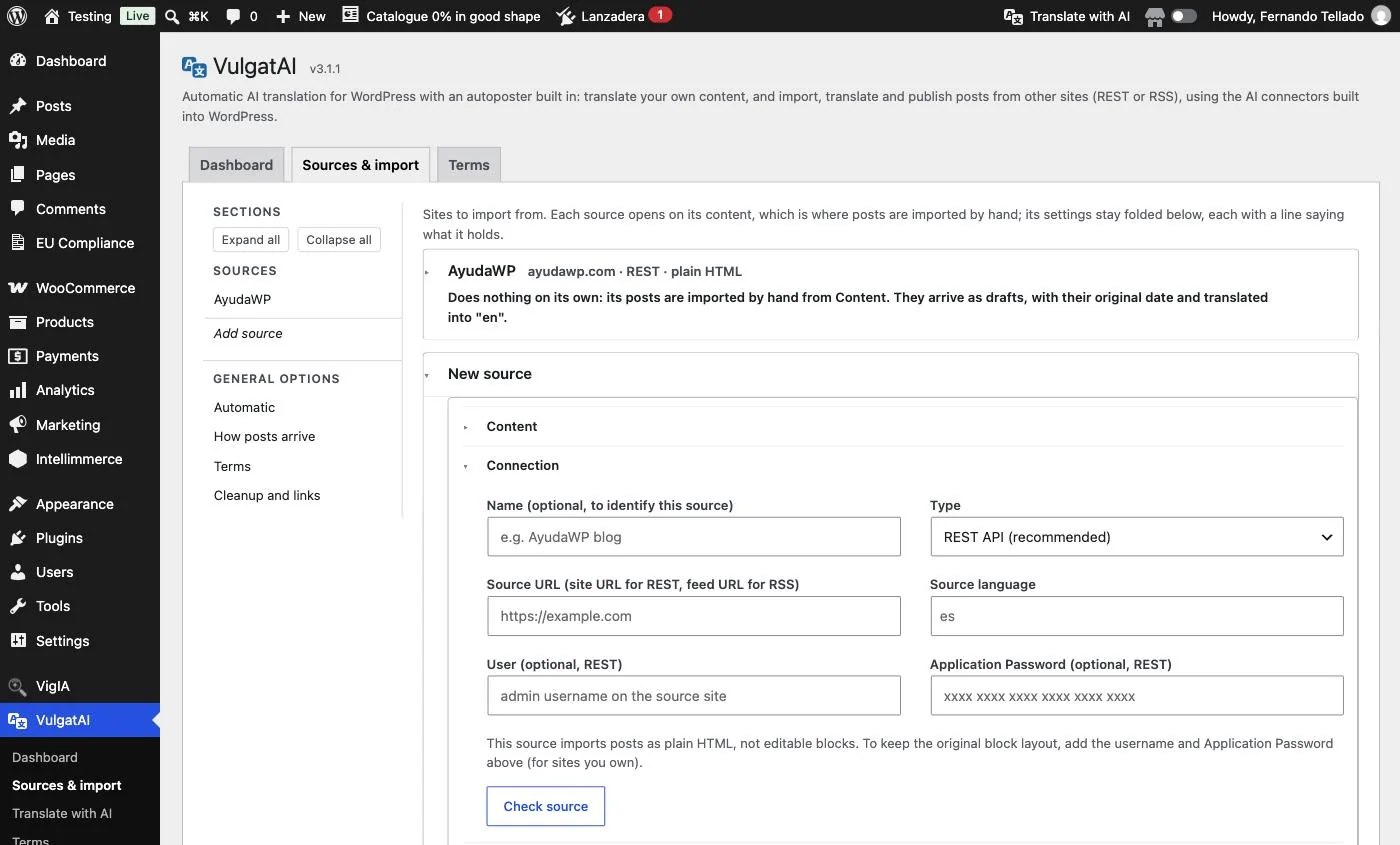
Configure the source
Fill in the site's URL (for REST) or the feed's URL (for RSS) and, to import with the original editable blocks of a WordPress site you own, add a username and an Application Password. Without them, a REST source still works, but posts arrive as plain HTML.
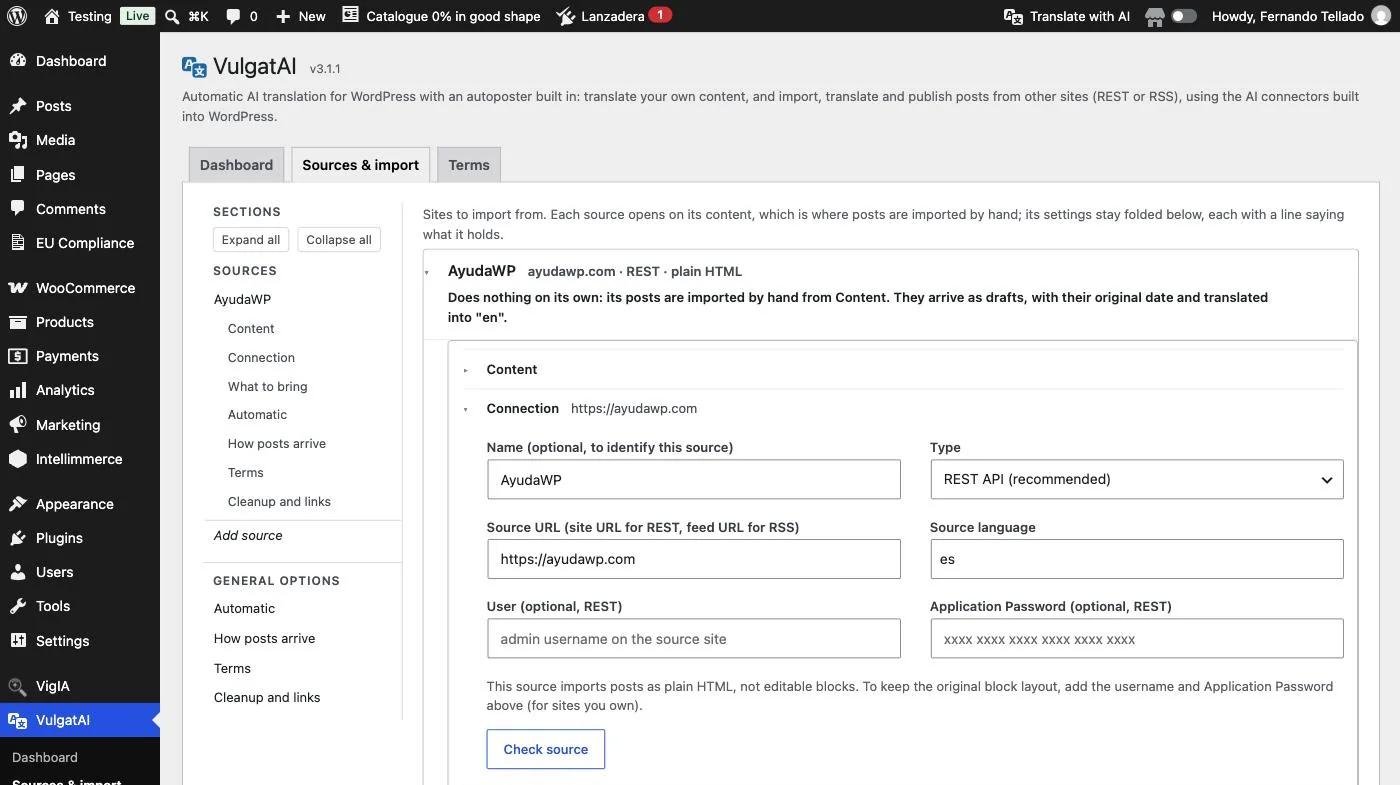
Click Check source before saving anything. VulgatAI confirms the URL responds and, while it's there, counts what the source holds in each of its collections and fills in the categories or tags you can exclude. It remembers that answer, so the list survives a page reload instead of falling back to Posts and Pages.
Check source reads a real post. It tells you how posts will arrive. A site built with blocks and added without a username and Application Password gets a warning that its posts will land as a single Classic block, because WordPress only shares blocks with a user who can edit them. With credentials, it checks that they really open the posts for editing and, when they don't, says why (Application Passwords turned off at the source, a site without HTTPS, a server that drops the Authorization header or a user who may not edit those posts). The comparison screen of each import also notes when an original built with blocks arrived as HTML, and why.
Content to import. In the What to bring group it is a table, one row per collection the source holds, each with its own tick box, how many items are in there and where that collection lands on your site. So a single source can bring posts in as posts and products in as products, rather than filing everything under one post type, which matters more than it sounds: a remote product filed as a post arrives with no price, no stock and no attributes, because a post has nowhere to put them. There is also a "Match the source" destination, general and per source, filing each item under the post type of the same name whenever your site has one. Each collection is checked on its own schedule and keeps its own place in the queue, so a quiet one never holds the others back.
Importing a shop. Point a REST source at a WooCommerce site, send its products to Products, and each one arrives buyable instead of as a post with a description: type, SKU, regular and sale price with their dates, stock and backorders, weight and dimensions, tax and shipping, virtual and downloadable products with their files, gallery, attributes and every variation with its own price, stock and image. The username and Application Password matter here as well: with them VulgatAI reads the WooCommerce REST API and brings the private fields too, and without them it falls back to the shop's public Store API, which still carries type, price, SKU, stock status, images, attributes and variations. Whatever stays behind is named on the comparison screen of step 9.
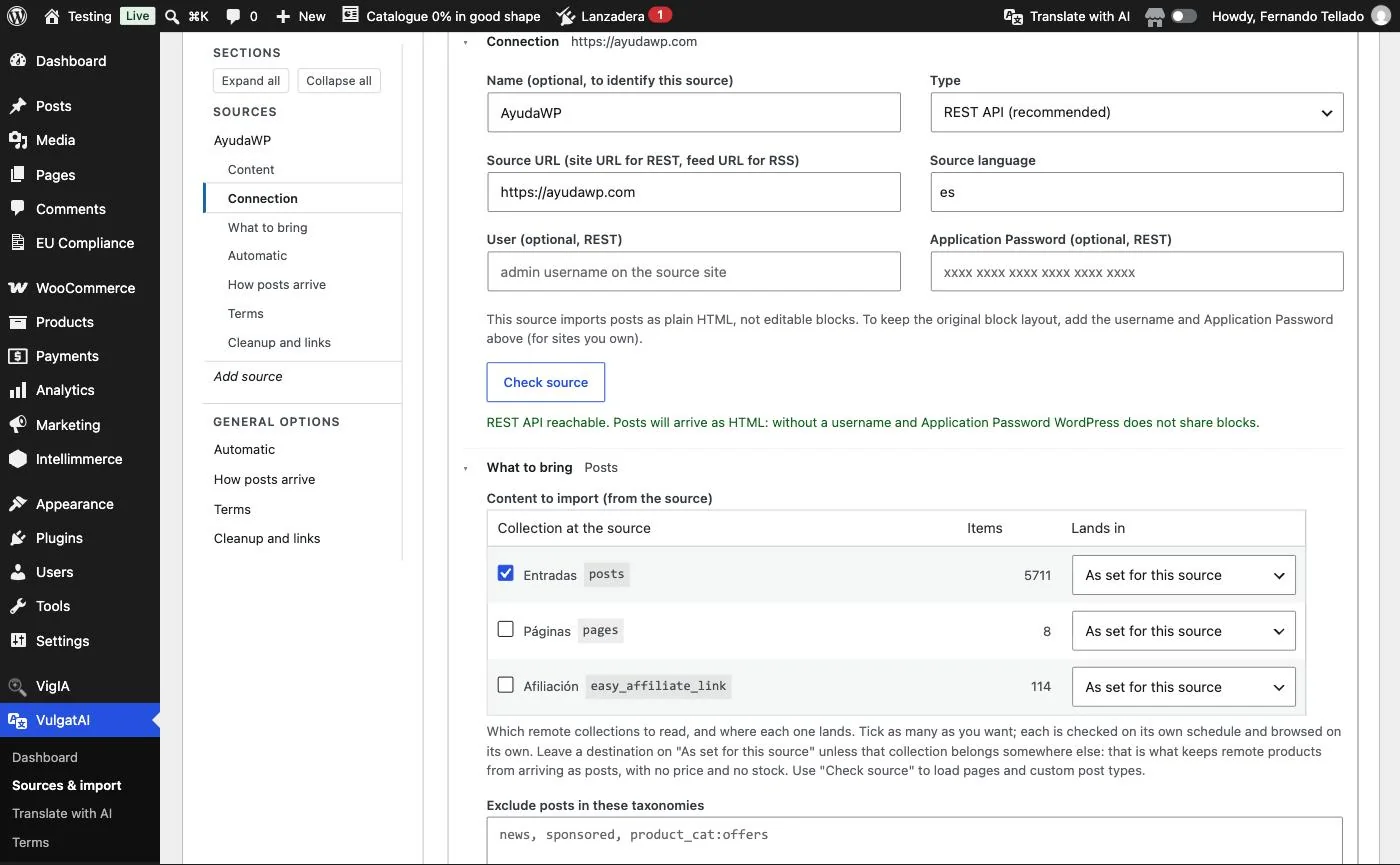
Save with Save changes, at the bottom of the page.
Excluding by taxonomy. "Exclude posts in these taxonomies" takes slugs, and a bare slug is resolved against categories and tags as it always was. Put the taxonomy in front of it, product_cat:offers, product_brand:acme or category:news, and it says exactly which one you mean, which is the only way to leave out a product category or to pick between a category and a tag that share a slug. Product attributes can't be filtered on, because WordPress doesn't offer them over its REST API, and the screen says so rather than letting you find out later.
Import and translate an entry
A saved source opens on its Content group, which is the list: paginated, with title, type, date and status, pulled straight from the source, one collection at a time with a switcher when the source offers more than one. Every row has a single button, matching that source's mode: "Import & translate," or just "Import" if you turned translation off.
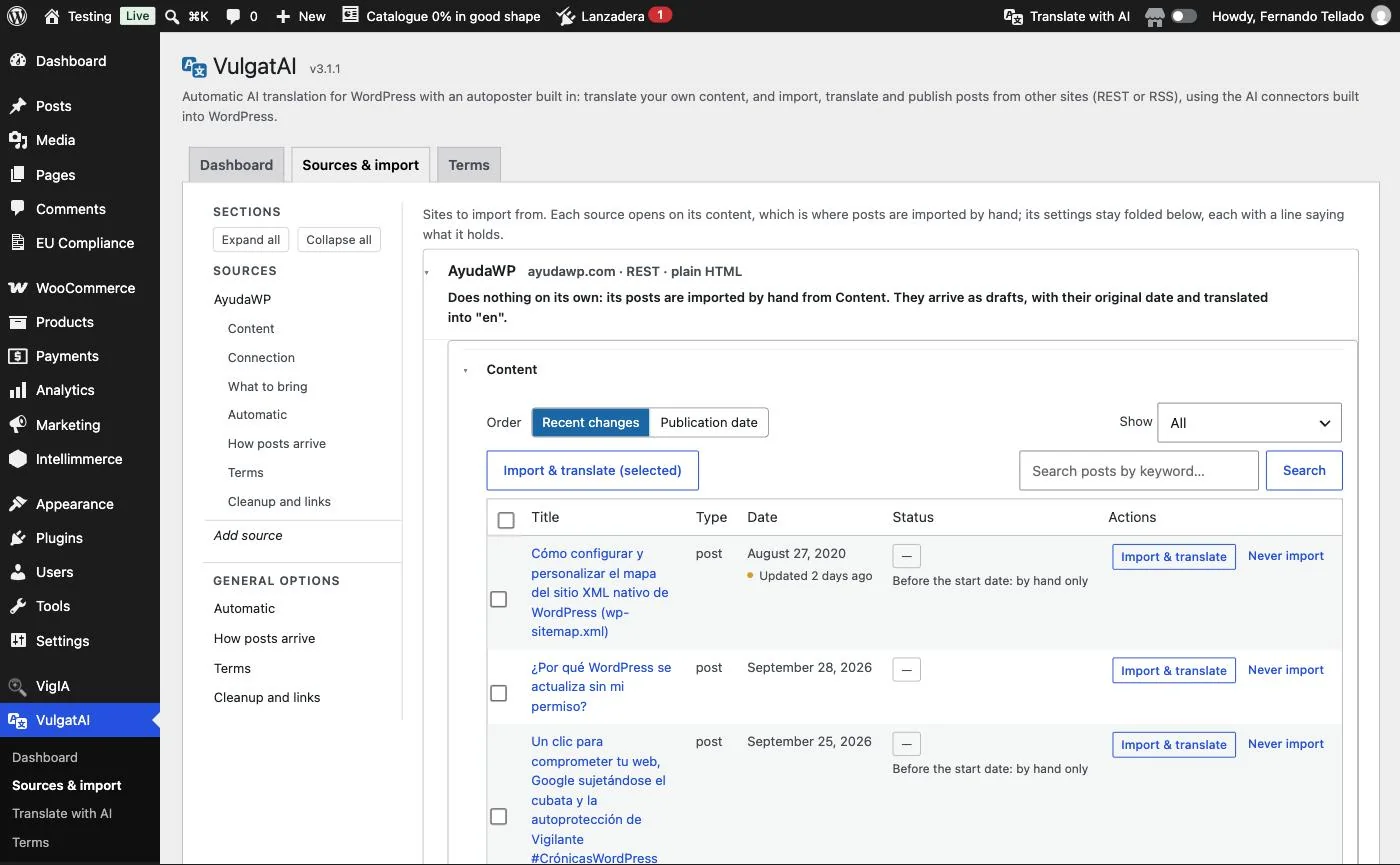
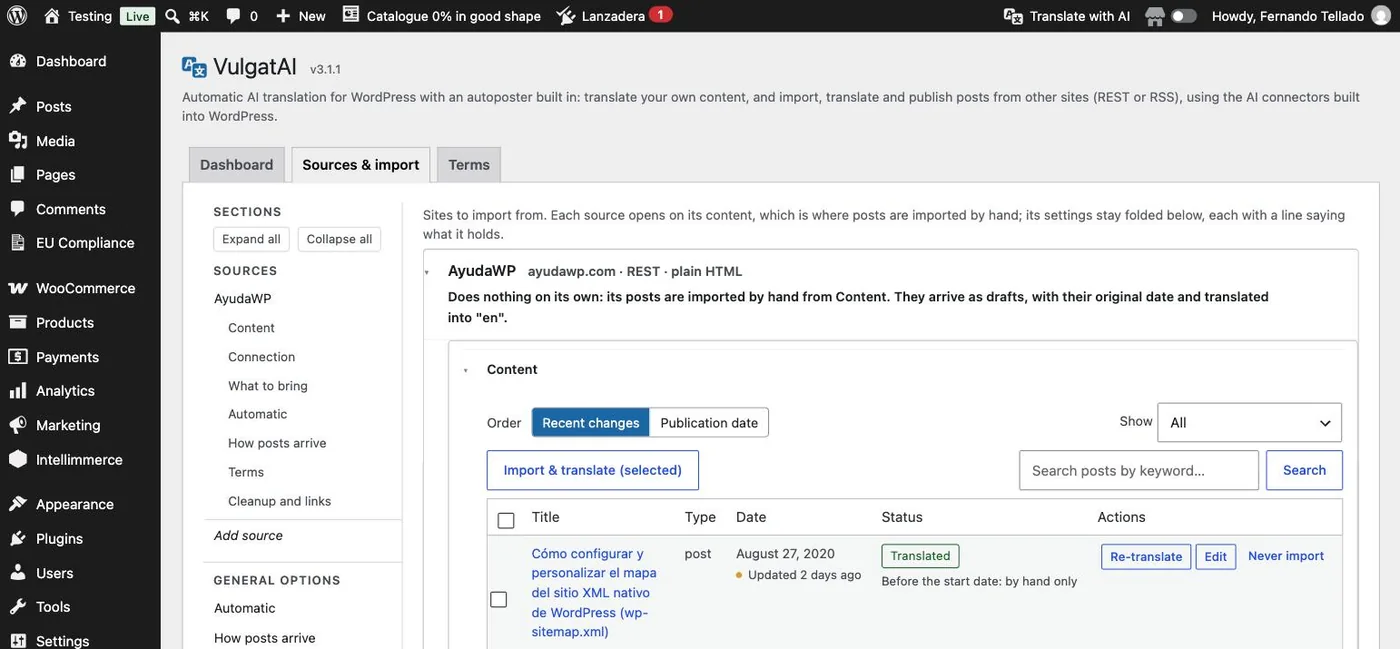
Each row shows the publication date and, when an item changed later, "Updated ... ago", marked when that happened in the last week. The list is ordered by recent changes by default, can be ordered by publication date instead, and can be filtered to All, Not imported or Changed at the source (a filtered view looks a few pages ahead at a time, with a "Look further" button). An imported post whose original changed shows a "Changed at the source" note with an Update button, and one older than the source's start date shows "Before the start date: by hand only".
Click that button on any entry and wait: the import brings over the content, images and taxonomies, and the translation follows right after, in the same operation.
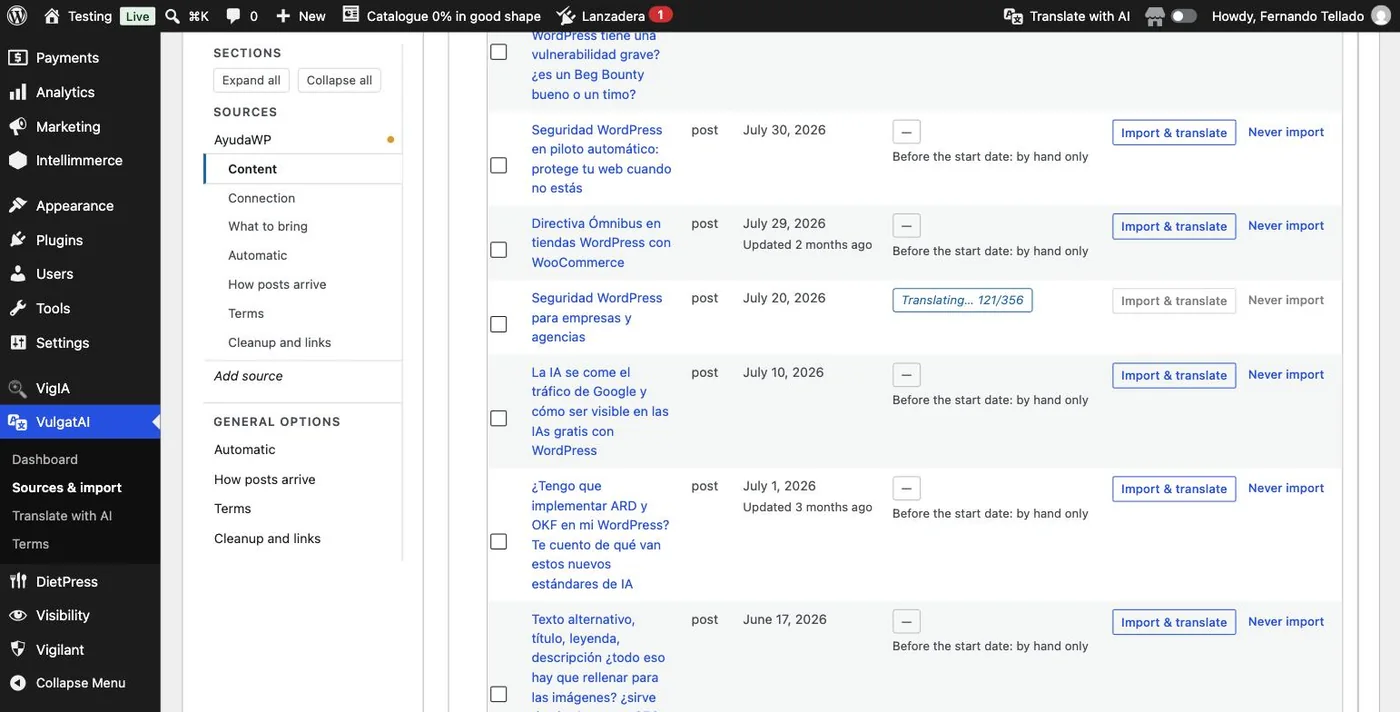
Long translations. VulgatAI splits them into short chunks with progress saved along the way, so no hosting time limit can kill one halfway through: whatever gets interrupted resumes on its own.
What the next check will do. Every source previews its next scheduled check: what it would import, update or skip and why, in the order it would run, what is left waiting for a later check because of the per-run limit, and when that check is due. "Run it now" queues exactly what the preview showed.
Updating never touches the status or the address. Update, Re-import, Re-translate in the editor and a scheduled check set to overwrite all bring the content over and leave the status alone, since the import status only applies to new posts. A published, scheduled or private post keeps its slug on every update, because WordPress only redirects the old address of a post that stays published, and a scheduled post keeps its date. Drafts and pending posts still follow the source.
Something you never want in. Each row has a "Never import" action, and from then on the scheduled sync leaves that item alone and lists it as skipped. Deleting the local copy does the opposite of what people expect: a missing copy is exactly what makes the sync import it again on the next pass. If you change your mind, importing it by hand takes the mark off.
Map the terms of a source
The Terms tab shows, for each source, where every one of its categories, tags and other terms lands on your site and how that was decided. It is where you correct a decision, and where you can make one before the term ever arrives.
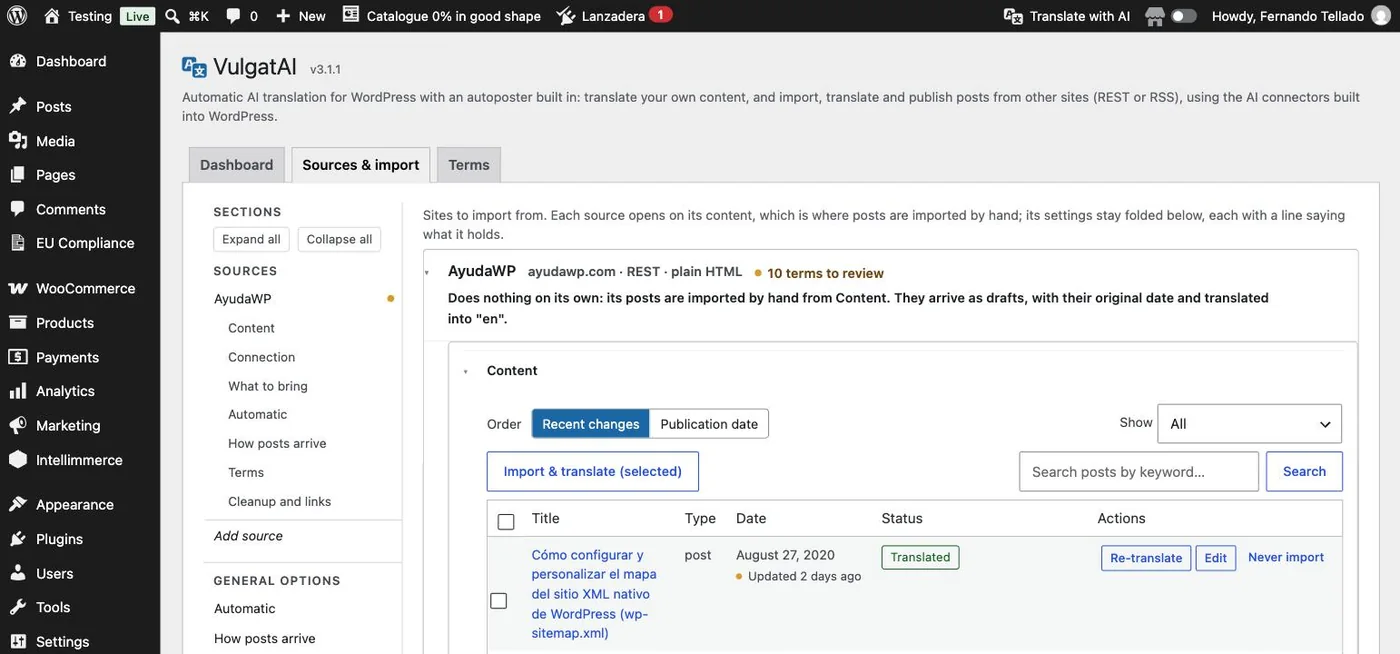
Each term carries the reason it ended up where it did: assigned by you, chosen by the AI, matched by name, taken from the glossary, created by VulgatAI, ignored, or not decided yet. The filters (All, To review, Automatic, Assigned by you, Ignored and Undecided), the search box and the taxonomy filter narrow the list down, and every term shows the posts imported with it. A dot in the side index flags a source that has decisions waiting, and the same count shows in the source's header and in its Terms group.
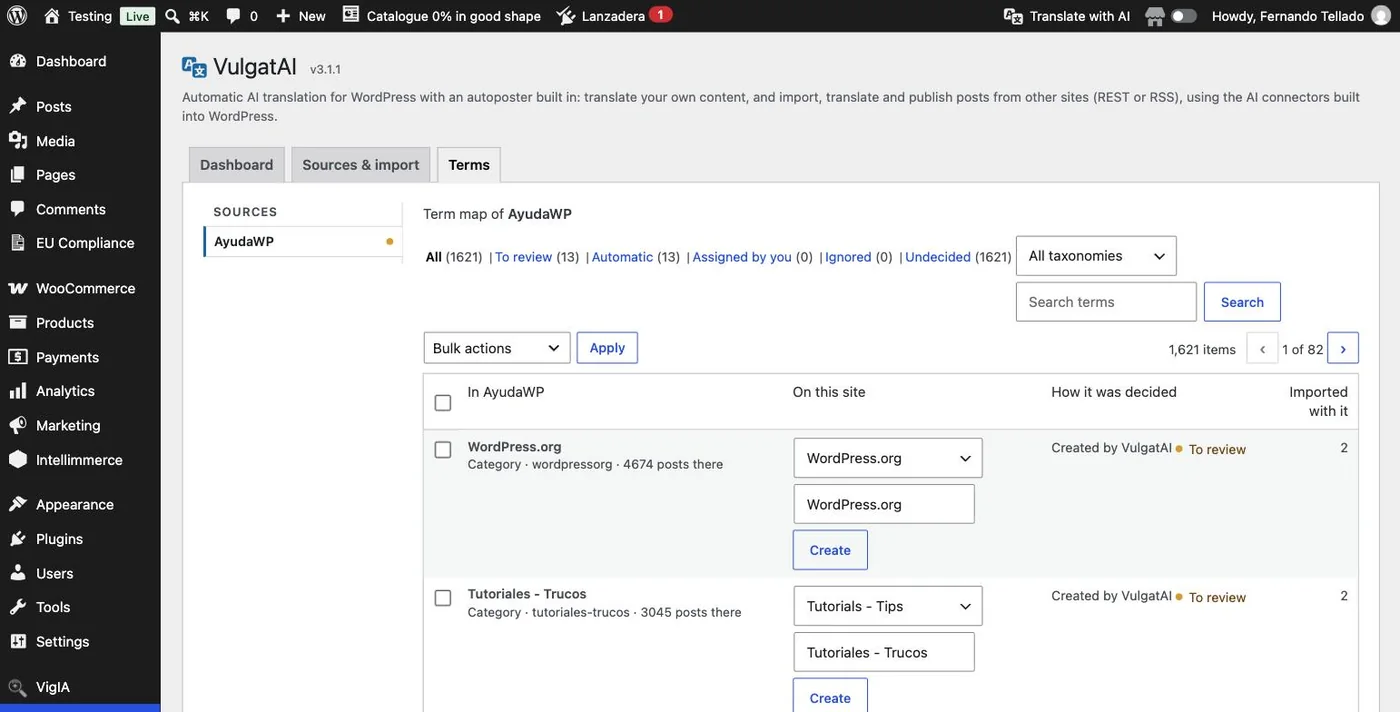
The bulk actions are Assign to..., Mark as reviewed and Ignore. Assigning a term that VulgatAI created merges it into the term you chose, and the same Merge into... bulk action is available on the Categories and Tags screens, and on any other taxonomy screen, for any term. Both ask for confirmation first, listing every source term and source involved, the posts that move and the archive URL that stops existing, and the term that survives keeps every mapping that pointed at the one it absorbed.
Fixed translations help here too. The "Fixed translations" list of the glossary pairs an original term with the exact translation it must always get, and both glossary lists also help name incoming terms during an import. A term can be decided before it arrives, which is handy when you already know where a source's categories should go.
How each source decides. By default VulgatAI looks for the equivalent among your existing terms. In a source's Terms group you can switch that to always translate and create (how it worked before 3.1.0), use only existing terms or always file into one chosen term, for each taxonomy if you need to.
Check the import result
You no longer need the original open in one tab and the import in another to see whether everything made it across. Every import counts the images, galleries, links, headings, list items, shortcodes and code blocks on both sides, and keeps that comparison on the post.
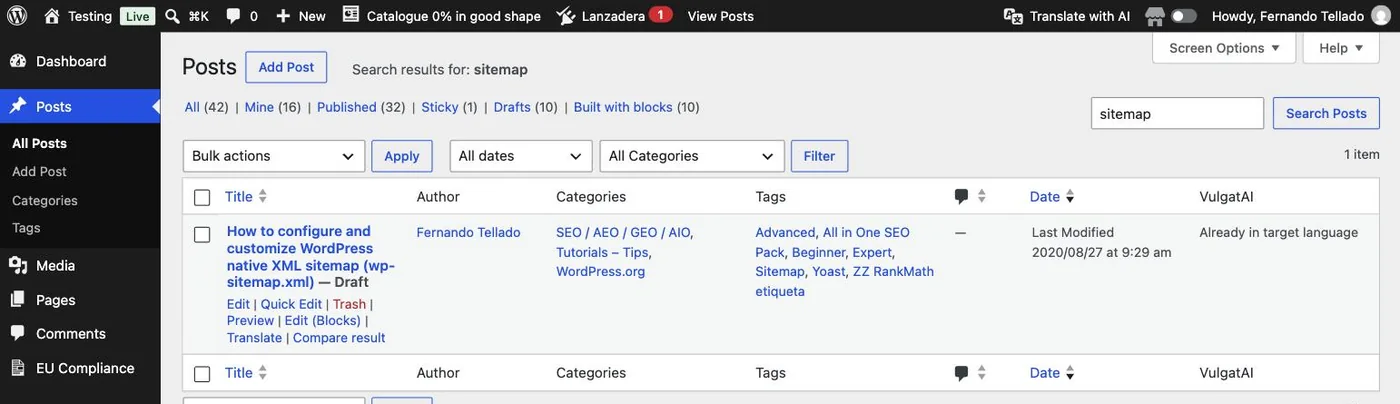
It only appears on posts that carry a comparison, so the rest of your rows stay as clean as they were. It is deliberately kept apart from the activity log: the log tells you what happened, this tells you what the post ended up looking like.
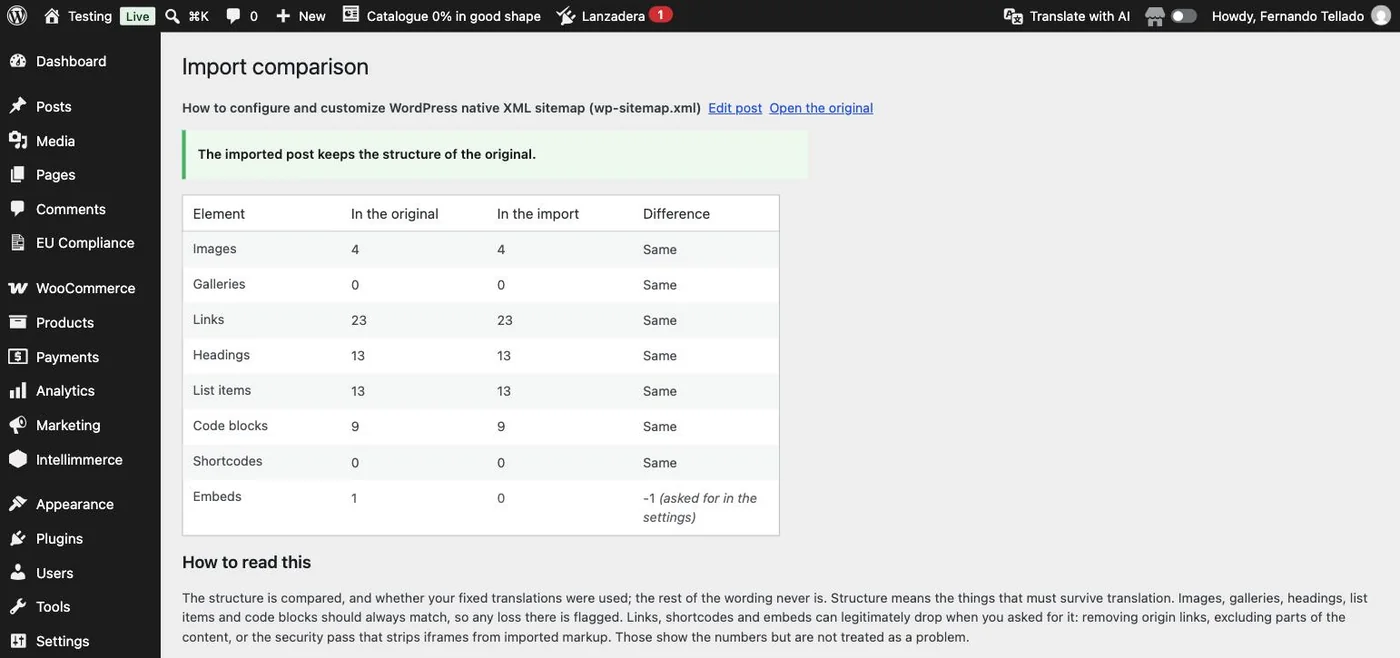
What you asked to lose doesn't count as a loss. Removing origin links, excluding parts of the content and the security pass that strips iframes all move the numbers, and all three are reported apart rather than treated as a problem. What the screen flags is what went missing on its own.
Whatever couldn't be resolved is listed here too, and it stays in the content instead of being deleted. An RSS source has no media API to ask for a gallery's images, and an image may simply be gone from the origin, so in both cases the reference is left where it was and you can fix it by hand.
Once you have fixed what you could, saving the post re-checks it and drops whatever the content no longer shows, so the flag comes off on its own. What has no fix at all, an image the origin no longer serves and that every re-import would lose again, can be marked as reviewed instead, one at a time or the whole list at once, which closes it without touching the post and leaves its comparison readable. A later import of the same post flags it again if it loses something.
Re-translate from the editor
Open any post VulgatAI produced and its panel shows up in the document sidebar, alongside the rest of the post settings, with the target language and a link to the content it came from. Rebuild it right there whenever you want, without going back to the lists. In the classic editor it is the same meta box, now first in the sidebar, above Publish.
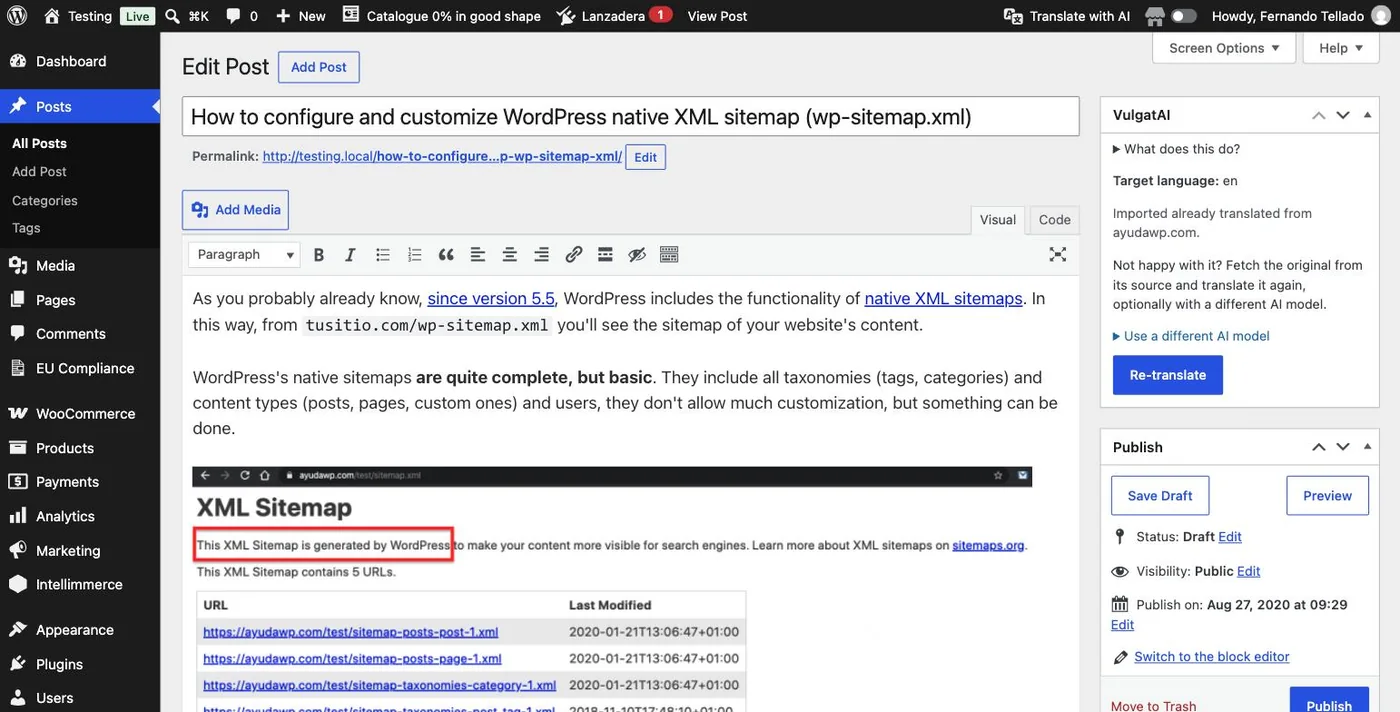
The same button covers both cases. If the post is the translation of one of yours, it is rebuilt from that original. If it arrived already translated from an external source, VulgatAI fetches the original again from the site it came from and rebuilds it with that.
Another model, just this once. "Use a different AI model" opens a picker that applies to that one rebuild, leaving the model in your settings untouched. Handy for trying a stronger model on a post that came out flat while everything else keeps using your usual one.
A "What does this do?" toggle inside the panel, in both editors, explains it on demand, next to the hint shown the first time you open it. Re-translating keeps the status the post already has, so a published translation stays published.
Polylang and WPML. When Polylang's "+" or WPML's WordPress Editor mode creates a blank translation slot, the VulgatAI box in that empty draft offers to fill it from the linked original with one click. It lands on that exact post and never as a duplicate. The WPML Advanced Translation Editor is a separate thing and stays out of this.
Translating your own content works the same way from the post list, through the Translate link on each row or the "Translate with VulgatAI" bulk action. All of those run on the same chunked engine as the imports, so your host's time limit can't cut a long post short, and the notice afterwards names the posts involved as links instead of just counting them.
Dashboard and activity
Back on Dashboard, the Status and Recent activity cards already reflect what you just did, and Pending review links straight to whatever is genuinely awaiting your approval, whether it's a draft or pending review.
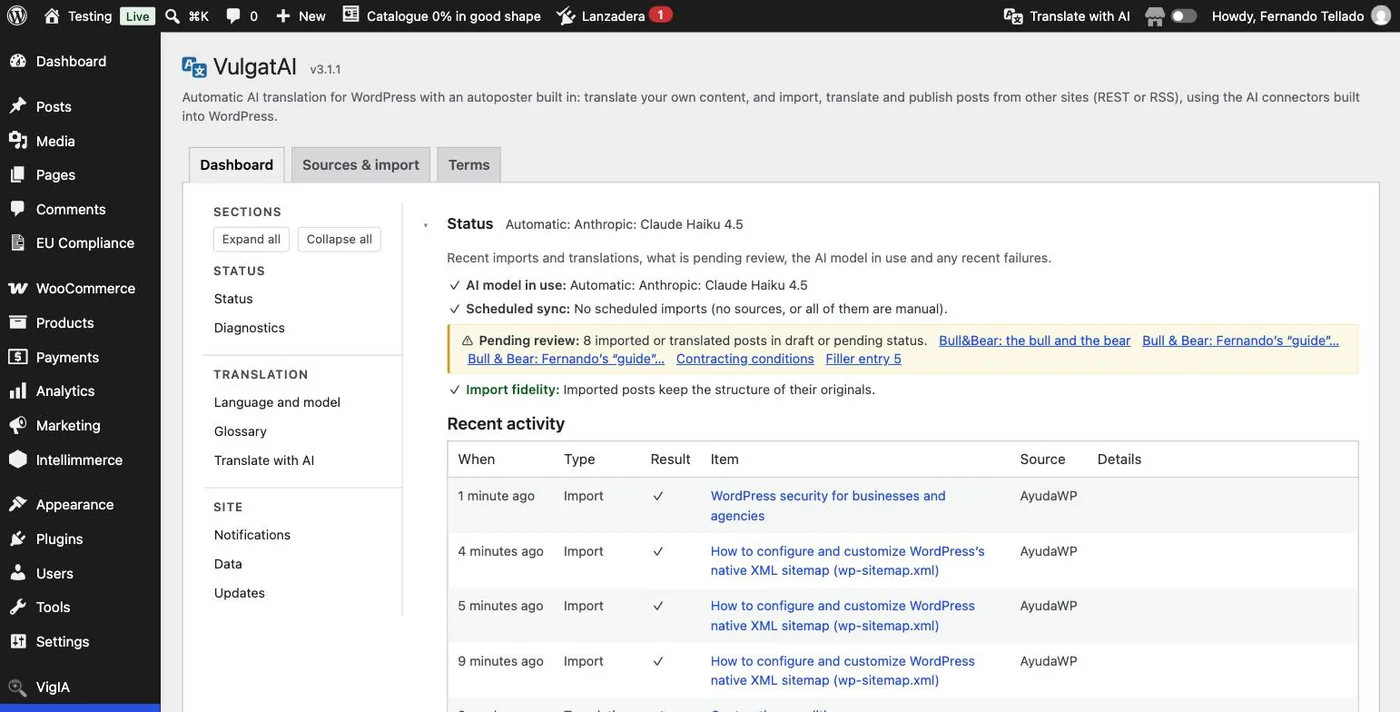
Import fidelity has its own line on both the card and the widget, green while your imports match their originals and amber when one of them doesn't, with a link straight to the posts worth a look. If you haven't scheduled any source yet, Scheduled sync says so; once a source starts checking for updates on its own, through Action Scheduler or WP-Cron, that same card confirms it.
Translate a text on its own
This window has nothing to do with sources or imports. You paste a text, it comes back translated, and that is the whole of it. Nothing is saved, no post is created, and it works before you have configured a single source.
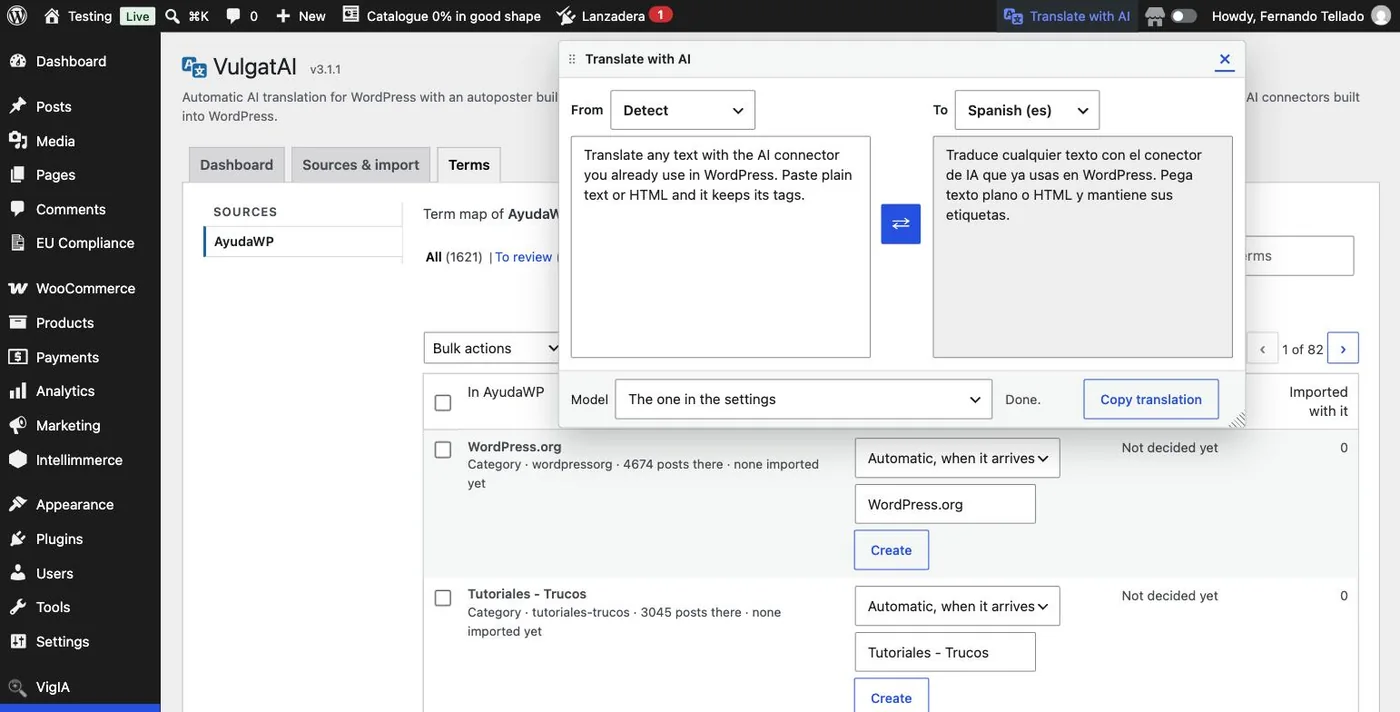
It opens from a link in the admin bar on any admin screen (just an icon on small screens) or from the command palette, so it also works inside the full-screen block editor. It doesn't dim the page or close when you click outside it, you can move and resize it, and it remembers its position and size for each person. Its menu entry opens that same window.
It runs on what the site already has, the connector you configured, the model in your settings and your glossary, so what comes out here is what an import or a translated post would give you. Nothing you paste is written to the database or shown in the activity log. The ⇄ button between the two boxes translates, and Copy translation puts the result on the clipboard without you having to select it.
Administrators can always use it and editors can by default. In the Translate with AI group of the Dashboard tab you choose which other roles get access, everyone other than administrators and editors gets a daily character allowance, and only administrators can pick a different model for a run.
Plain text or markup, your call. Paste plain text and it comes back with its paragraphs. Paste HTML or block markup and it comes back with its tags, attributes and code exactly as they went in, which is what lets you copy a translated block straight back into a post without repairing it afterwards.
It is also the cheapest way to settle the questions that used to need a whole import to answer. Whether a stronger model is worth its price on your kind of writing, or whether the term you just added to the glossary is respected, takes one paragraph and a couple of seconds here instead of a run of forty posts.